
table of content
-
- Introduction
- Use Case: Building an HR Policies AI Assistant Using RAG
- The Challenge
- The Solution
- Step 1: Create a New AI Agent in Microsoft Copilot Studio
- Step 2: Confirm and Create
- Step 3: Configure AI Agent Name, Description, and Model in Copilot Studio
- Agent Name
- Agent Description
- Agent Model
- Step 4: Define Agent Instructions
- Step 5: Connect Azure DevOps Wiki as the RAG Knowledge Source
- Adding the Azure DevOps Wiki
- Mark as Official Source
- Disable Web Search
- Step 6: Configure Conversation Topics
- Customized Topics for HR KB Agent
- Step 7: Configure Tools
- HR Chat Tool — Start HR Chat
- Step 8: Additional Agent Settings
- User Feedback — Enabled
- Feedback Disclaimer — Configured
- Content Moderation Level — High
- Flagged Response Handling — Configured
- Use General Knowledge — On
- Step 9: Deploy the RAG AI Agent in Microsoft Teams
- Conclusion: Why RAG AI Agents Are the Future of Enterprise Knowledge Assistants


How to Build a RAG AI Agent Using Microsoft Copilot Studio and Azure DevOps Wiki
Introduction
Retrieval Augmented Generation (RAG) AI agents are quiUse Case: Building an HR Policies AI Assistant Using RAGckly becoming a common way teams handle internal knowledge. By combining large language models such as OpenAI, with internal knowledge sources, teams are starting to build assistants that can answer questions using their own documentation.
Let us see how we build a RAG AI agent using Microsoft Copilot Studio and Azure DevOps Wiki which will work directly inside Microsoft Teams. Employees can simply ask questions in plain language and get answers directly from internal documentation.
This is exactly what we achieved using Microsoft Copilot Studio and Azure DevOps Wiki as our knowledge base. In this guide, I will walk you through how we build this step by step.
Use Case: Building an HR Policies AI Assistant Using RAG
For this case, we have built an HR Policies Agent; an AI-powered virtual assistant develops to help employees quickly access HR information without always reaching the HR team for regular questions.
The Challenge
In our case, the HR team kept getting these same questions every day
“What is the leave policy?”
“Where can I check my payroll details?”
“What are the public holidays this year?”
“How does the reimbursement process works here?”
While these questions are important for every organization, they were consuming a good amount of time for HR resources and taking time away from more important work. The information is already present in our Azure DevOps (ADO) Wiki. Employees simply did not know where to find or preferred not to navigate through multiple wiki pages.
The Solution
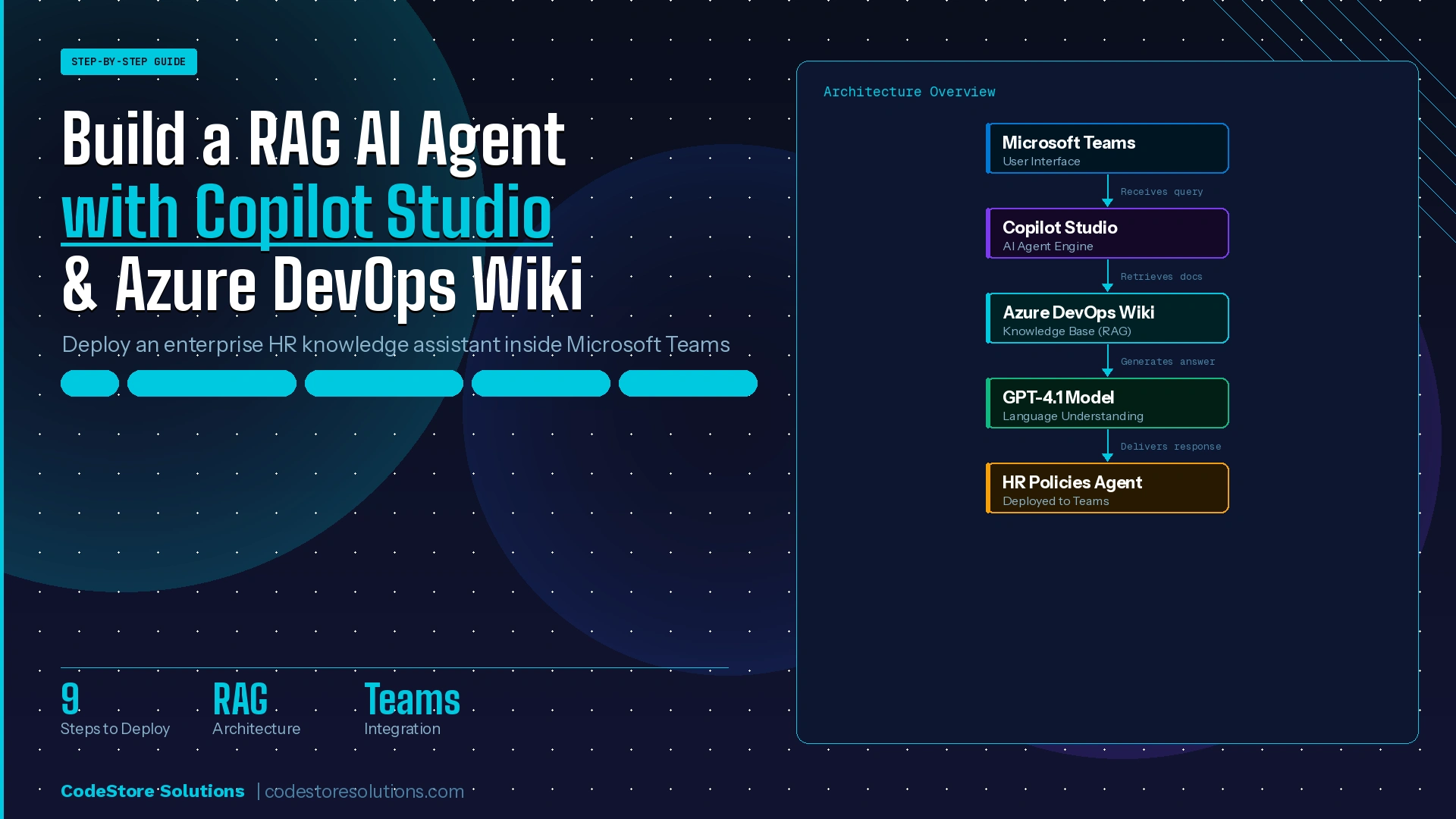
So, we built a simple assistant that:
Works directly inside Microsoft Teams (where employees already work)
Get answers directly from our internal ADO Wiki
Gives clear answers along with links to the original source
Passes complex issues to HR when needed
We also turned off web search, so it does not pull random answers from the internet.
AI Transformation Tip
The Major difference between any RAG agent and a regular chatbot is grounding. A regular bot answers from what it has learned, while a RAG agent pulls answers directly from your company’s data.
Step 1: Create a New AI Agent in Microsoft Copilot Studio
First, we created a new agent for Microsoft Copilot Studio.
Open Microsoft Copilot Studio
Select Create blank agent
Click on Advanced settings to configure the foundationIn the Advanced settings, configure:

Solution Selection: Select the solution where the agent will be stored. We have used the default Copilot-Studio solution.
Agent’s language: Mark to English
Schema name: Enter a unique technical identifier (e.g., cr1d5_agent1)
Environment: Select it as Copilot-Studio
Implementation Note
The schema name is permanent and used in backend references. The solution determines where your agent components (topics, variables, connectors) are stored for lifecycle management.
Step 2: Confirm and Create
Once you have configured the advanced settings:
Click Confirm and create
It takes a few seconds to set things up
It will take a few seconds. You will land on the agent’s main configuration page once provisioning is complete.
Step 3: Configure AI Agent Name, Description, and Model in Copilot Studio
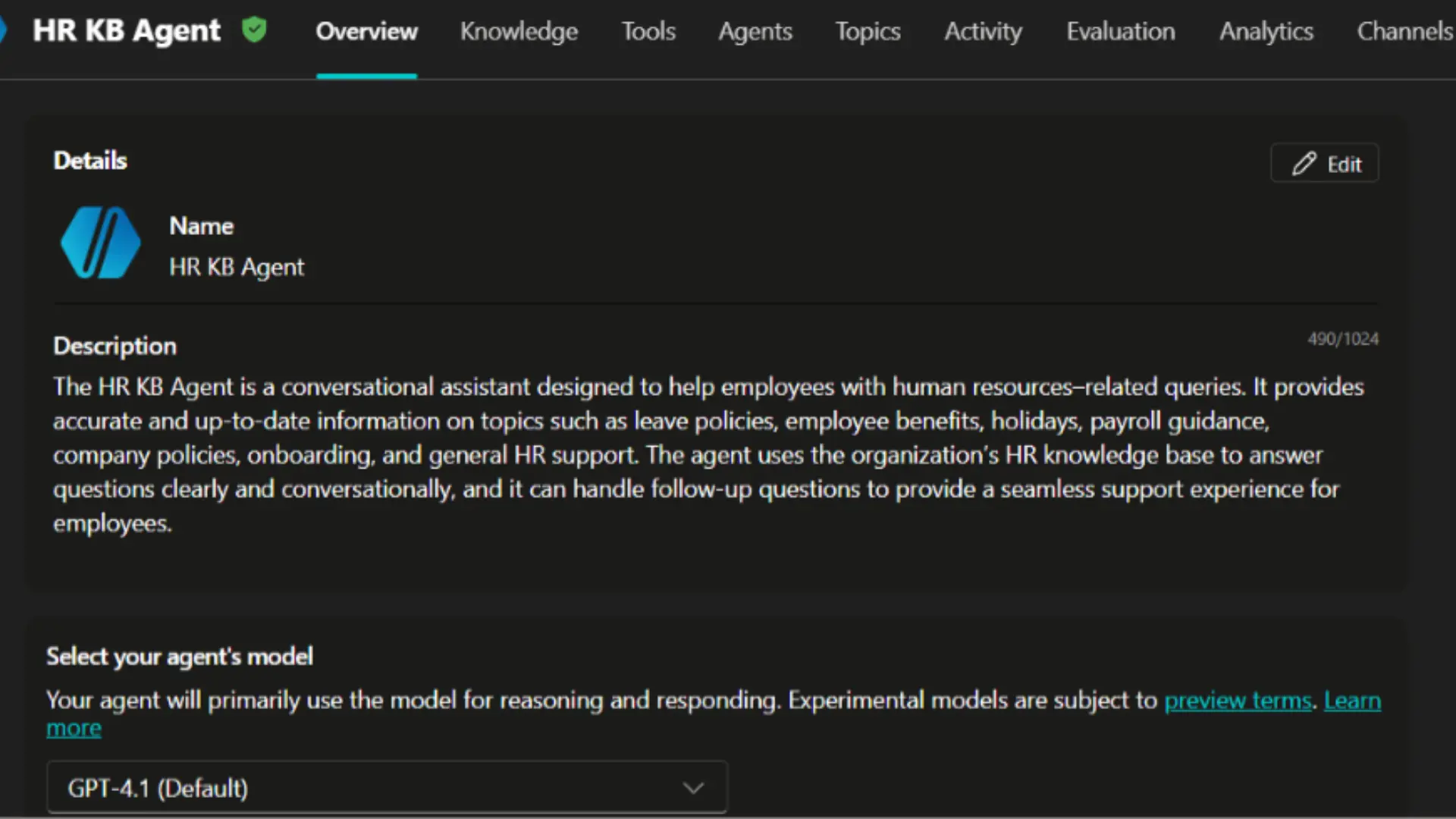
Next, we set up the name, description, and model.
Agent Name
Choose a clear, user-friendly name that employees will recognize when they see it within the Teams.
Example: HR Policies Agent
Agent Description
This description helps both developers and end users understand the agent’s purpose.
Example: The HR Policies Agent is a conversational assistant designed to help employees with human resources-related queries. It provides accurate and up-to-date information on topics such as leave policies, employee benefits, holidays, payroll guidance, company policies, onboarding, and general HR support.
Agent Model
Choose the AI model that will handle the agent’s intelligence.
Example: GPT-4.1 (Default), We chose GPT-4.1 because of its superior reasoning capabilities, instruction-following accuracy, and reduced hallucination risk compared to earlier models.
Step 4: Define Agent Instructions (Behavior Configuration)
This section controls how the agent behaves and responds. It will act as the system prompt that will handle how the agent answers user queries.
The instructions should include:
Role Definition: You need to Specify the agent’s purpose and communication style
Scope: You must define what topics it should cover and what it should not
Response Style: Set the tone (professional, friendly), format (structured vs. conversational), and citation behavior (always include source links)
Example Instructions:
You are the HR Policies Agent for [Your Organization. Your role is to assist employees with HR-related queries by providing accurate, clear, and concise information based solely on internal HR documentation stored in the Azure DevOps Wiki.
Always provide source links to the relevant wiki pages.
If the information is not available in the knowledge base, politely inform the user and suggest they should contact the HR directly.
Do not make assumptions or provide general knowledge which is not in documented policies.
When a user’s query requires personalized HR intervention (e.g., payroll corrections, complaints), offer to initiate a Teams chat with the HR team directly.
Be professional, empathetic, and helpful in your tone.
Pro Tip
The better you write your instructions, the better the agent will perform. Test different phrasings and refine based on real user feedback.
Step 5: Connect Azure DevOps Wiki as the RAG Knowledge Source
This is where things start to come together. Now you connect it to your internal data.
This is where it actually becomes useful.
Adding the Azure DevOps Wiki
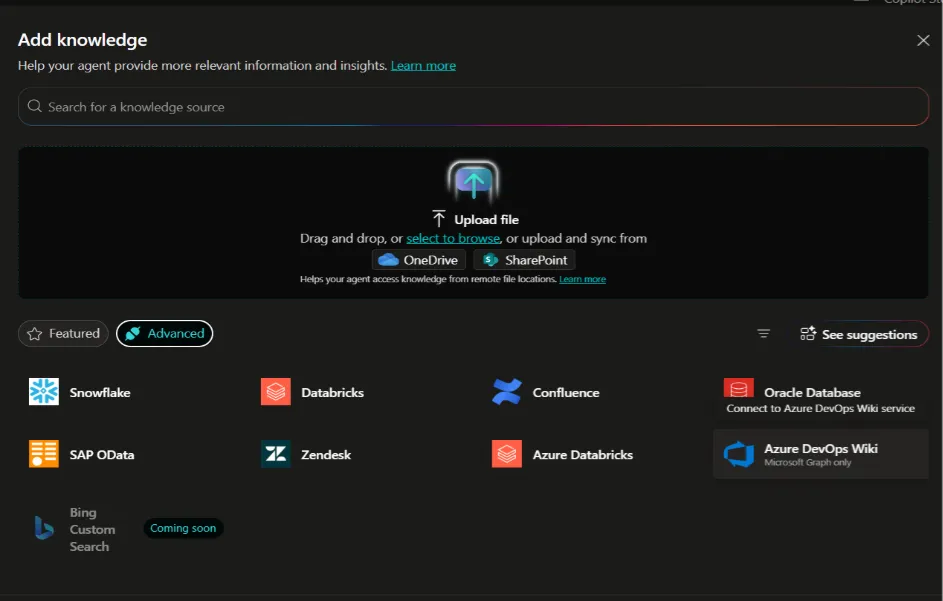
In the Knowledge section, click Add knowledge
From the list of available connectors, select Azure DevOps Wiki
Authenticate and click on the ADO project and wiki you want to connect
Configure the connection settings
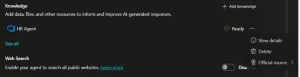
Mark as Official Source
When you add a knowledge source, you will see an option to mark it as an Official Source. Set this to: Yes, marking it as an official source helps the agent prefer this data when answering questions.
Mark as Official Source
Disable Web Search
It is better to turn off a web search, so the agent only uses your internal data.
By default, copilot Studio agents can use web search to supplement answers. For internal knowledge base scenarios, it can create risks of hallucinations, outdated information, or irrelevant public content which can compromise accuracy.
Action: Disable the Web Search feature. This way, it only uses your internal data.
AI Transformation Tip
We are building a trusted enterprise assistant. Every answer must be traceable to an internal, approved source. Allowing web search would break that trust model and compromise data security.
Step 6: Configure Conversation Topics
This section controls how conversations are handled and responds to user intents. Copilot Studio already gives you some default topics to work with, which you can customize to match your organization’s needs.
System Topics
Here are the key system topics available:
Topic
Purpose
Conversation Start
Start the interaction when a new chat begins
End of Conversation
Handles conversation closure and redirects if needed
Escalate
Triggers escalation to HR or human support
Fallback
Responds when the agent cannot understand the user query
Multiple Topics Selection
Handles cases where multiple topics match a query
On Error
Executes when a backend or processing error occurs
Reset Conversation
Refresh context and restarts the conversation
Sign In
Manages authentication when required
Greeting
Sends welcome message with starter options
Goodbye
Handle with polite conversation ending
Start Over
Allows user to restart the interaction flow
Thank You
Respond to user appreciation messages
Customized Topics for HR KB Agent
We customized key topics to enhance the user experience:
Greeting
Provide a welcome message with optional quick reply to buttons to help users initiate conversations easily.
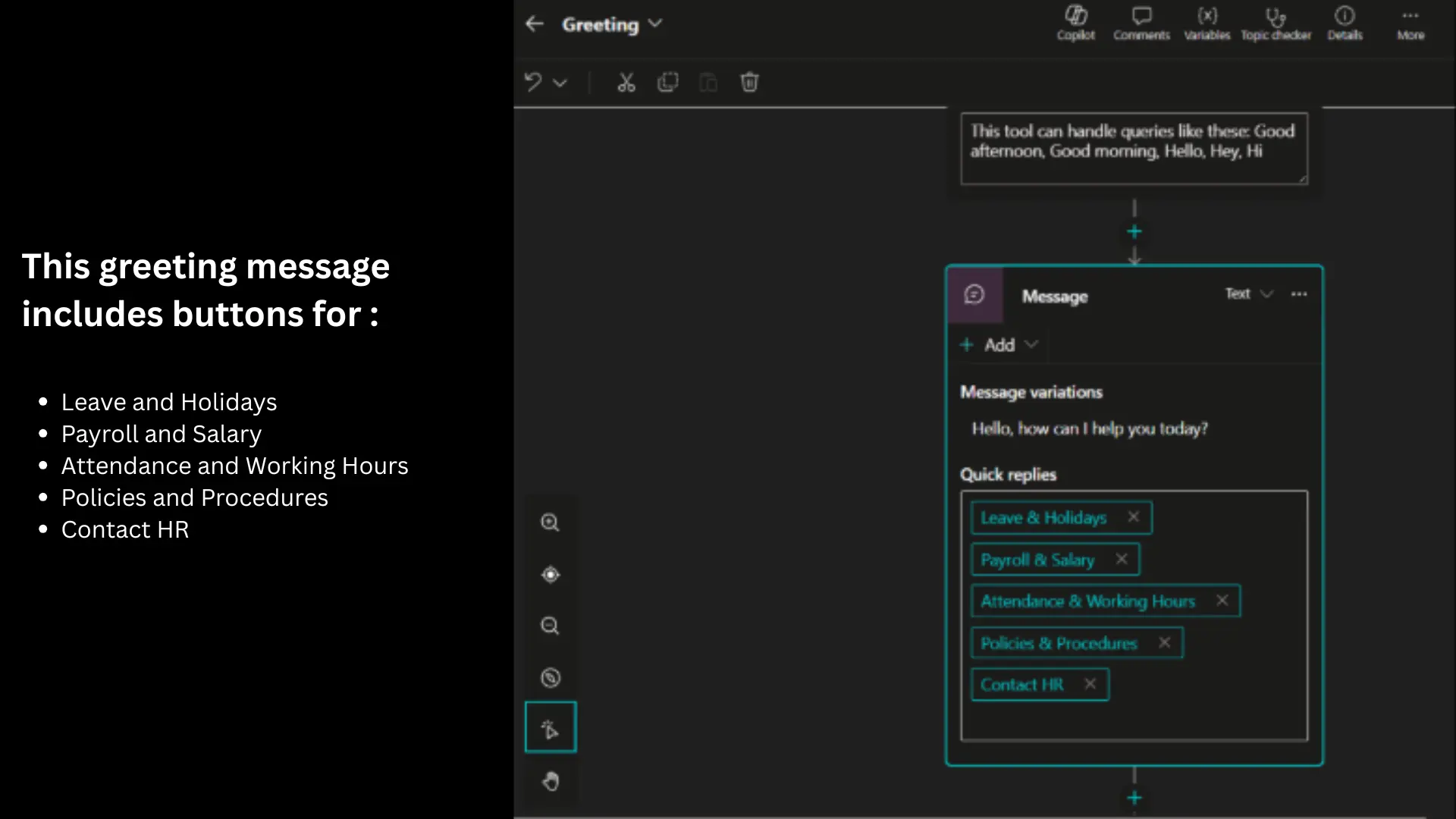
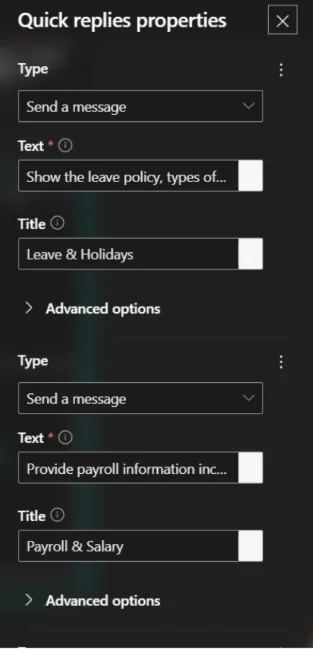
These buttons are optional but can improve user experience, especially for first-time users who are not sure what to ask.
On Error
Displays a custom user-friendly error message when processing fails.
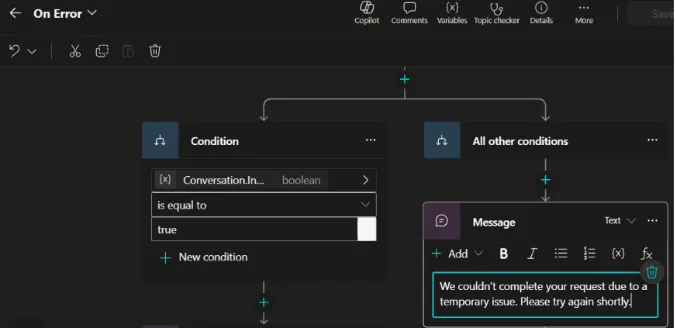
Example error message: We cannot complete your request due to a temporary issue. Please try again shortly.
Step 7: Configure Tools
Tools let the agent do more than just answer questions. For the HR KB Agent, we integrated a Microsoft Teams tool to enable seamless HR escalation.
HR Chat Tool — Start HR Chat
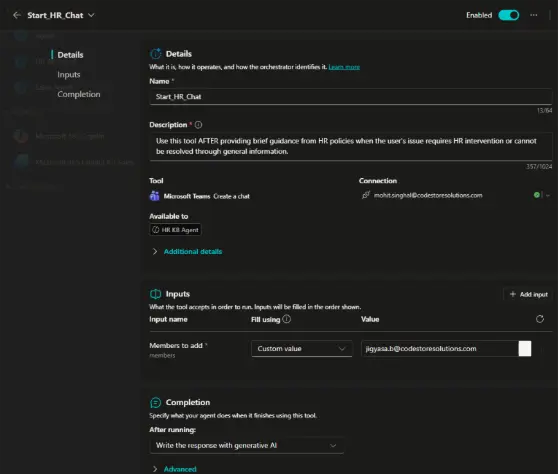
The Start HR Chat tool allows the agent to create a Microsoft Teams chat with the HR representative when a user’s issue requires human intervention.

Tool Configuration:
Integration: Microsoft Teams — Create chat
Authorized account: Uses authorized organizational account
Availability: Enabled for HR KB Agent
Input: Members to add—HR contact email (e.g., abc@codestoresolutions.com)
Tool Description:
Use this only after giving a proper answer from the knowledge base from HR policies when the user’s issue requires HR intervention or cannot be resolved through general information. Do not use this tool as the only response if relevant guidance exists.
Implementation Note
We have designed the agent to first attempt answering from the knowledge base and only escalate when necessary. This reduces unnecessary HR interruptions while still providing a seamless handoff for complex cases.
Step 8: Additional Agent Settings
These advanced settings, configured under Advanced Settings, control feedback collection, content moderation, and knowledge behavior.

User Feedback — Enabled
Take thumbs-up/down reactions and optional comments from users
Feedback will be stored in organization for quality monitoring and continuous improvements

Feedback Disclaimer — Configured
Displays a notice to users that submitted feedback is shared with the organization (not Microsoft), ensuring transparency and trust.
Content Moderation Level — High
Applies stricter filtering to reduce the risk of harmful or non-compliant responses. This is particularly important for HR-related content, which can involve sensitive topics.
Flagged Response Handling — Configured
Defines the message shown when a response is blocked by moderation policies.
Use General Knowledge — On
Allows the agent to use foundational model knowledge in addition to internal HR sources.
Why we enabled this:
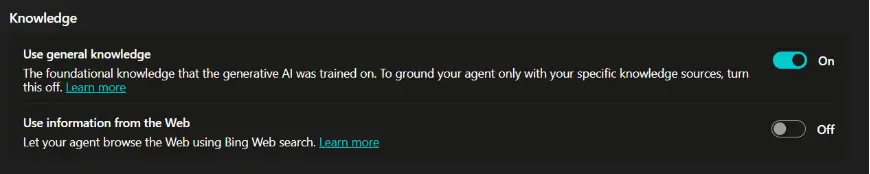
If disabled, the agent becomes overly rigid and loses contextual intelligence. For example, if a user asks, “What does PTO stand for?”, the agent can answer using general knowledge (“Paid Time Off”) before searching the wiki for the company’s specific PTO policy.
Trade-off: There is a small risk of incorrect answers. But it is manageable.
Step 9: Deploy the RAG AI Agent in Microsoft Teams
Finally, we deployed the agent so the team could start using it.
The HR Policies Agent is deployed to:
Microsoft Teams
Microsoft 365 Copilot
These channels will allow employees to access the agent within their existing Microsoft work environment.
Deployment Steps
Go to the Channels tab in Copilot Studio
Select Microsoft Teams and Microsoft 365 Copilot
Configure sharing settings (select organization-wide access if required)
Publish the agent
Employees can now interact with the agent:
Directly in Microsoft Teams
Via Microsoft 365 Copilot
Teams Channel Configuration
Configure the following for the Teams deployment:
Name: HR KB Agent
Icon: Upload a PNG icon (white transparent image, less than 30 KB, no extra padding)
[Image: Agent icon]
Brief description (up to 80 characters): An AI-powered HR Knowledge Base Agent
Long description (up to 3,400 characters): The HR KB Agent is a conversational assistant develop to help employees with human resources-related queries. It provides accurate and up-to-date information on topics such as leave policies, employee benefits, holidays, payroll guidance, company policies, onboarding, and general HR support.
Show an agent disclaimer in M365 Copilot: OFF
(Enable this if you really want to display a notice when users launch or @mention the agent in M365 Copilot to inform them about data and privacy policies)
Team’s settings: Decide where and how your agent should function in Teams:
☐ Users can add this agent to a team
☑ Use this agent for group and meeting chats
Access and Distribution
Once published, the agent is available through:
Agent Details:
Configured name, icon, short and long description
Shared with teammates (org-wide sharing pending admin approval)
Generated access link for Teams
Option to download deployment package for Teams app store publishing
Availability:
Enabled usage in group and meeting chats
Personal chat access supported
Distribution Options:
Access link for Teams (it can be shared via email or internal channels)
Deployment package (.zip) for Teams app catalog
Conclusion: Why RAG AI Agents Are the Future of Enterprise Knowledge Assistants
Building something like this really changes how teams access information. By connecting your Azure DevOps Wiki (or any internal knowledge base) to an intelligent conversational Agent, you create a system that:
Makes information easily available to everyone: Every employee, regardless of tenure or role, has instant access to accurate organizational information
Fewer repetitive questions for the HR team: Routine queries are handled automatically, freeing subject matter experts and support teams for higher-value work
Ensures consistency: All employees will receive the same accurate information, reducing inconsistencies across departments
It continues to work as your data grows: As your knowledge base grows, the agent automatically incorporates added information without manual retraining the system
Key Success Factors
Based on our implementation experience, we can say that below factors are critical for success:
Knowledge Base Quality: The agent’s effectiveness directly links to how well your knowledge base is organized. Invest time in structuring content with clear headings, consistent formatting, and regular reviews to remove outdated information.
Clear Agent Instructions: Clear and detailed instructions act as the contract between you and the AI. Mention exactly what the agent should do, what it should not, when to escalate, and how to format responses.
Iterative Testing: We should do a pilot group before organization-wide deployment. Real user feedback will help in finding knowledge gaps, unclear responses, and opportunities for improvement that you will not discover in internal testing.
Strategic Feature Selection: Disable features that do not align with your use case. For internal knowledge bases, disable web search, limit general knowledge usage, and turn off unnecessary channels to maintain trust and security.
FAQs
Q. Can CodeStore Solutions build AI-powered apps for other industries and use cases too?
Yes! Beyond HR knowledge agents, we have built a wide range of AI-powered and custom applications including:
Roomieee – Discover Your Ideal Room or Roommate
E-Library App – Your Digital Bookhouse
Sibot – AI-Powered Virtual Friend & Smart Assistant
Book Library Management System
EduZone – Empowering Learning with Online App Solutions
View our full portfolio or contact us to build your next solution.
Q. What is the difference between a RAG and a chatbot?
A traditional chatbot only uses static, pre-trained data to answer questions, which makes it quickly out of date. A RAG (Retrieval-Augmented Generation) agent gets answers in real time straight from your internal knowledge base, such as SharePoint or Azure DevOps Wiki. This makes sure that every answer is correct, up-to-date and backed up by a source. RAG agents are much more reliable than regular chatbots for businesses that have to deal with a lot of internal documents.
Q. Can my employer see my copilot history ?
Yes, maybe. If your company has allowed it, your IT admin can see your conversation logs because Microsoft Copilot runs in your company’s Microsoft account. Microsoft does not use your work conversations to train its AI, though. In general you should use Copilot at work the same way you use your work email. Your business can see it.
Q. Does Copilot Studio require coding?
No. Microsoft Copilot Studio is a platform that doesn’t require code or low-code. You don’t need to know how to code to build, set up and deploy a fully working AI agent. A simple visual interface lets you connect sources of information, plan conversation topics and post to Microsoft Teams. You might need some technical knowledge to set up advanced customizations like custom API integrations or Power Automate flows but for most business cases you don’t need to know how to code.
Q. Can you build a new agent in Copilot using Copilot Studio?
Yes. This is exactly what Microsoft Copilot Studio was made for. You can make HR bots, IT support agents, customer service assistants, and knowledge base agents that all work inside Microsoft Teams. To publish just open Copilot Studio click Create, then New Agent, connect your knowledge source, and hit Publish. That’s all.